Disable NTLM Authentication in Windows
What is NTLM
NTLM is an outdated and insecure authentication protocol that is still surprisingly common in modern Windows environments. While it may “just work,” it also opens the door to some of the most common and devastating Active Directory attacks.
If you’re serious about reducing credential theft and lateral movement, disabling NTLM should be on your hardening roadmap.
Why NTLM Is a Problem
NTLM lacks many of the security protections expected from modern authentication protocols. Unlike Kerberos, NTLM:
Does not support mutual authentication
Relies on weak cryptographic mechanisms
Allows credentials (or their hashes) to be reused
This makes NTLM vulnerable to well-known attack techniques such as:
Pass-the-Hash
NTLM Relay
Credential interception
Lateral movement using legitimate authentication
In real-world breaches, NTLM is often the bridge attackers use to move from one compromised system to full domain compromise.
Risk Impact
NTLM significantly increases the blast radius once a single system is compromised. If NTLM is enabled in your environment, attackers can:
Bypass password complexity by replaying hashes
Authenticate without knowing the actual password
Move laterally between systems using stolen credentials
Escalate privileges and compromise the entire domain
Productivity Impact
Disabling NTLM is not always risk-free.
Some legacy applications, printers, scanners, or older systems may still rely on NTLM for authentication. Blindly disabling it without visibility can cause unexpected authentication failures.
Where to Start
Before enforcing NTLM restrictions broadly, identify where NTLM is still being used in your environment.
If you’re using Microsoft Defender for Endpoint, you can leverage the following Advanced Hunting queries to detect NTLM usage across endpoints.
DeviceLogonEvents
| where Protocol == "NTLM"

IdentityLogonEvents
| where Protocol == "NTLM"
Tip: Start by reviewing logs and then enforce restrictions in phases.
Recommended Approach
Identify NTLM usage (audit first)
Disable NTLM on workstations
Enforce Kerberos wherever possible
Monitor authentication failures after deployment
Handle exceptions explicitly (not globally)
Implementation: Disable NTLM via Intune Platform Script
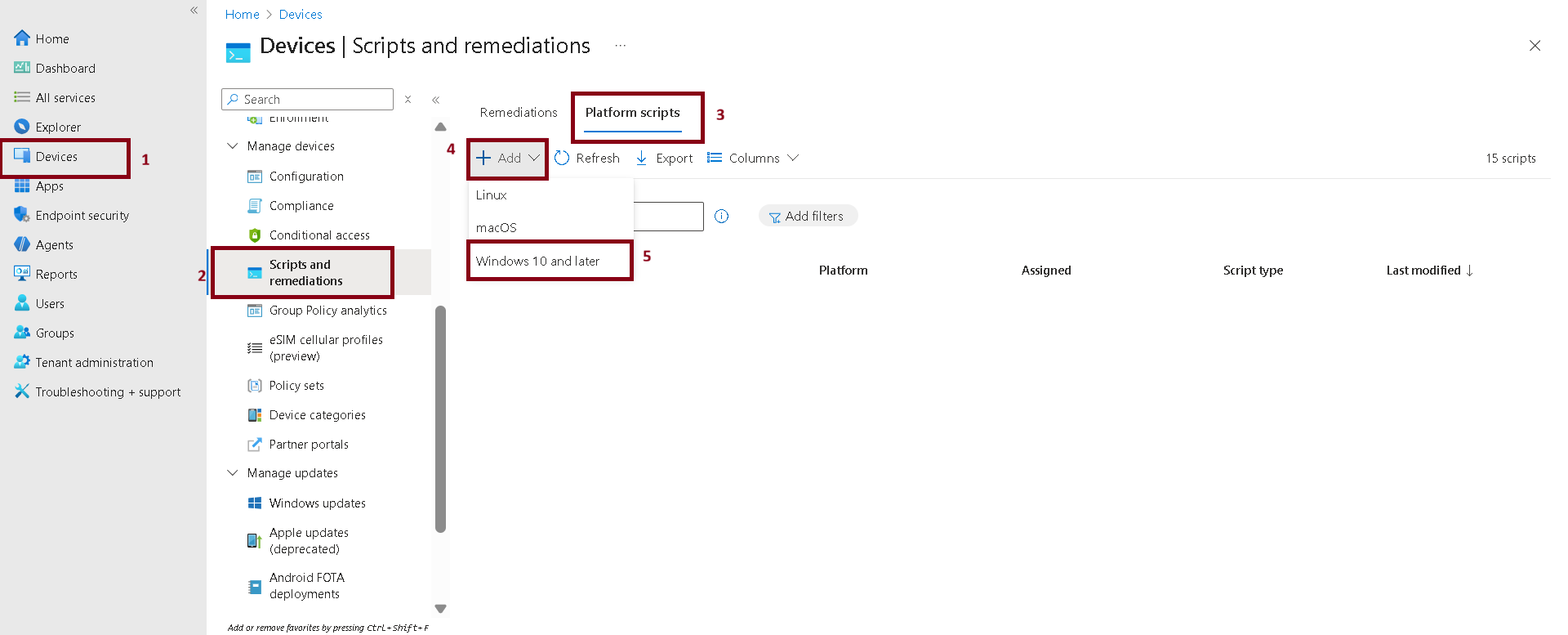
Go to the Intune admin center
Navigate to Devices → Scripts and remediations → Platform Scripts.
Click on Add and select “Windows 10 and later”.
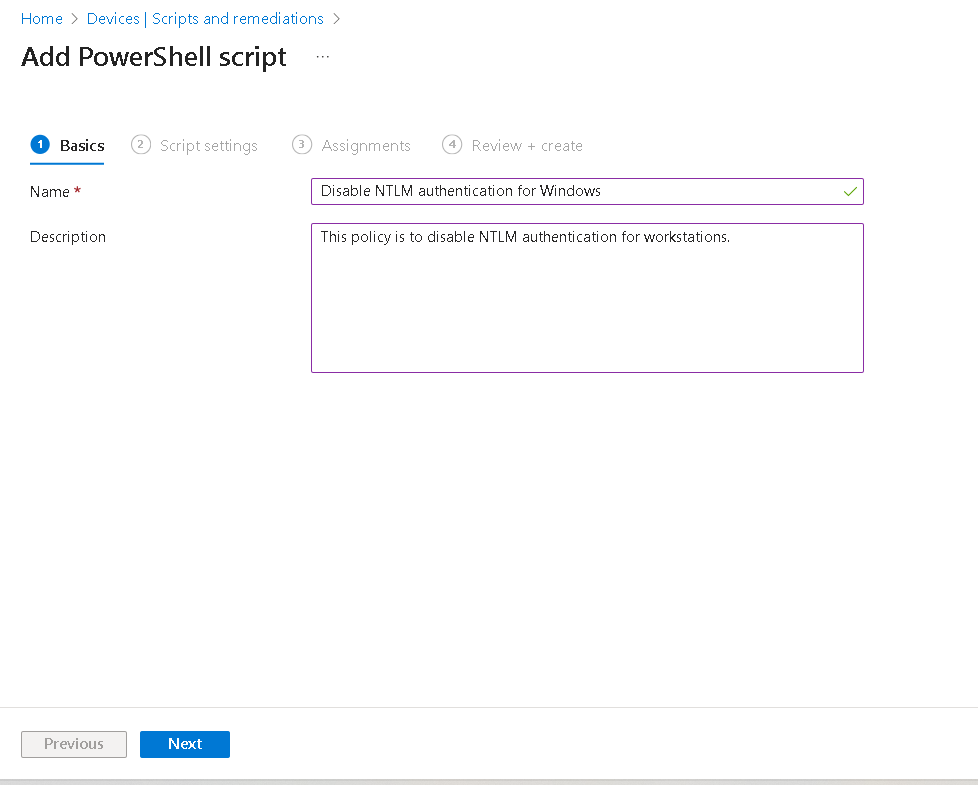
- Provide an appropriate Name and Description. Click Next.
| Tip: Don’t forget to follow your company’s naming standard if it has any.
- Save the following PowerShell script as ‘.ps1’.
PowerShell Script
# Disable NTLM authentication - Workstations

# Set LAN Manager authentication level
# Level 5: Send NTLMv2 response only. Refuse LM & NTLM
New-ItemProperty `
  -Path "HKLM:\SYSTEM\CurrentControlSet\Control\Lsa" `
  -Name "LmCompatibilityLevel" `
  -PropertyType DWord `
  -Value 5 `
  -Force

# Restrict NTLM traffic to Domain Controllers
New-ItemProperty `
  -Path "HKLM:\SYSTEM\CurrentControlSet\Control\Lsa\MSV1_0" `
  -Name "RestrictSendingNTLMToDC" `
  -PropertyType DWord `
  -Value 2 `
  -Force

# Restrict receiving NTLM traffic
New-ItemProperty `
  -Path "HKLM:\SYSTEM\CurrentControlSet\Control\Lsa\MSV1_0" `
  -Name "RestrictReceivingNTLMTraffic" `
  -PropertyType DWord `
  -Value 2 `
  -Force

# Restrict sending NTLM traffic
New-ItemProperty `
  -Path "HKLM:\SYSTEM\CurrentControlSet\Control\Lsa\MSV1_0" `
  -Name "RestrictSendingNTLMTraffic" `
  -PropertyType DWord `
  -Value 2 `
  -Force
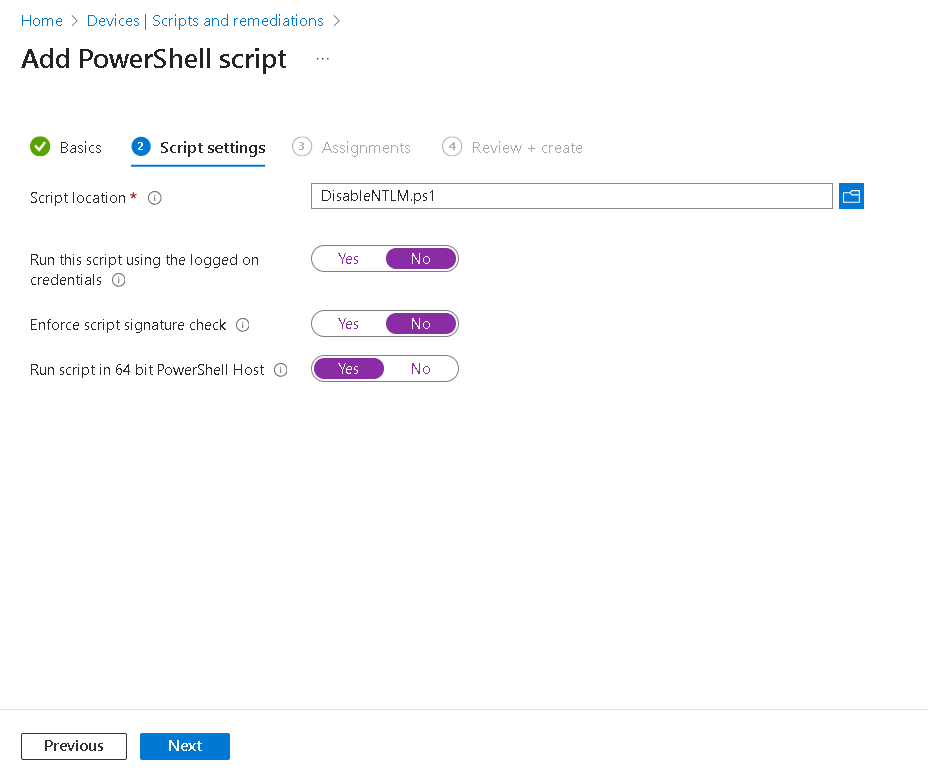
- Upload the .ps1 file and configure the script settings as shown in the image below. Click Next.
- Under the Assignments tab, assign the policy to the devices. Click Next.
⚠️ Test this in a pilot group before broad deployment.
- Review the settings and click Create.
What These Settings Do
LmCompatibilityLevel = 5
Forces NTLMv2 only and refuses legacy LM/NTLM authentication.RestrictSendingNTLMToDC = 2
Prevents NTLM authentication attempts to domain controllers.RestrictReceivingNTLMTraffic = 2
Blocks incoming NTLM authentication requests.RestrictSendingNTLMTraffic = 2
Prevents the system from sending NTLM credentials to other systems.
Together, these settings significantly reduce credential exposure and lateral movement opportunities
Final Thoughts
NTLM is one of those “it still works, so we never touched it” configurations — and that’s exactly why attackers love it.
Disabling NTLM:
Reduces attack surface
Limits credential replay
Forces stronger authentication paths
Makes lateral movement harder
Yes, the config can be cursed.
But leaving NTLM enabled is far worse.
Comments
Join the discussionNo comments yet. Be the first to comment.